If you’ve been working with WordPress for a while, you know how important images are for both user experience and SEO (Search Engine Optimization).
But here’s the thing most beginners don’t realize:
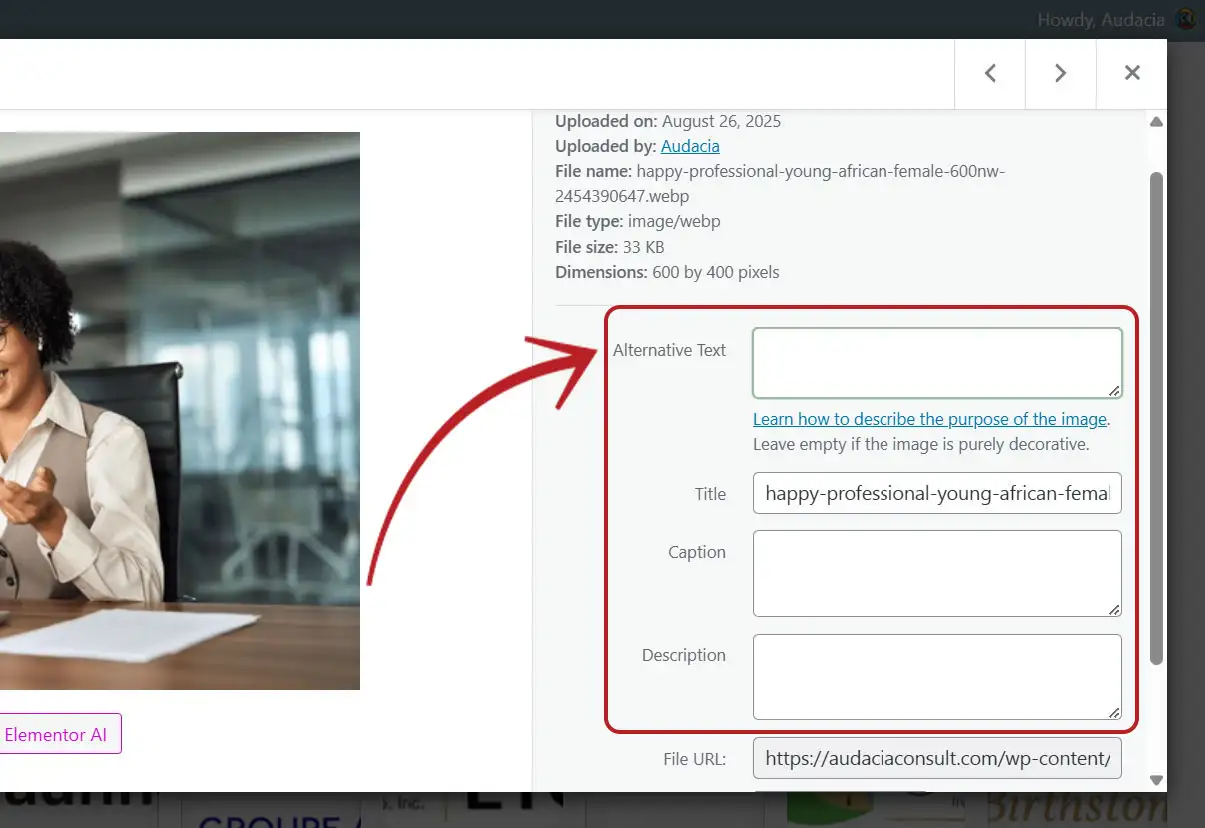
When you upload an image to WordPress, it doesn’t always have proper Alt Text, Title, Caption, or Description. And missing attributes can harm your site’s accessibility and SEO rankings.
If you have thousands of images already exist in your media library, manually adding them for every single image is not only time-consuming but also something most of us forget to do.
Good news: with this simple piece of custom code, you can make WordPress automatically add SEO attributes to your images for every existing images & future media uploads. — Let’s break it down step by step.
Why Are Image SEO Attributes Important?
Before we jump into the code, let’s quickly understand why these fields matter:
- Alt Text – Helps search engines understand what your image is about, improves accessibility for screen readers.
- Title – Displays when hovering over an image, adds extra SEO context.
- Caption – A short description visible below the image, good for user engagement.
- Description – More detailed text about the image, helpful for SEO and media library organization.
When all these are missing, your images don’t contribute much to your website’s SEO potential.
The Code That Updates Existing & Future Image SEO Attributes
We’ll add a custom function in your theme’s functions.php file (better, in a custom plugin folder in your plugins folder).
// Auto-set attributes for new image uploads
add_action('add_attachment', 'auto_image_seo_attributes');
function auto_image_seo_attributes($attachment_id, &$counters = null) {
    $attachment = get_post($attachment_id);

    if ($attachment->post_type == 'attachment' && strpos($attachment->post_mime_type, 'image/') !== false) {
        $file = pathinfo(get_attached_file($attachment_id));
        $filename = ucwords(str_replace(array('-', '_'), ' ', $file['filename']));
        $parent = get_post($attachment->post_parent);
        $post_title = $parent ? get_the_title($parent->ID) : get_bloginfo('name');

        $seo_text = $post_title . " - " . $filename;

        if (is_array($counters)) {
            if (empty($attachment->post_title)) {
                wp_update_post(['ID' => $attachment_id, 'post_title' => $seo_text]);
                $counters['title']++;
            }
            if (empty($attachment->post_excerpt)) {
                wp_update_post(['ID' => $attachment_id, 'post_excerpt' => "Image for " . $post_title]);
                $counters['caption']++;
            }
            if (empty($attachment->post_content)) {
                wp_update_post(['ID' => $attachment_id, 'post_content' => "This image is related to " . $post_title . " on " . get_bloginfo('name')]);
                $counters['description']++;
            }
            if (!get_post_meta($attachment_id, '_wp_attachment_image_alt', true)) {
                update_post_meta($attachment_id, '_wp_attachment_image_alt', $seo_text);
                $counters['alt']++;
            }
        } else {
            if (empty($attachment->post_title)) {
                wp_update_post(['ID' => $attachment_id, 'post_title' => $seo_text]);
            }
            if (empty($attachment->post_excerpt)) {
                wp_update_post(['ID' => $attachment_id, 'post_excerpt' => "Image for " . $post_title]);
            }
            if (empty($attachment->post_content)) {
                wp_update_post(['ID' => $attachment_id, 'post_content' => "This image is related to " . $post_title . " on " . get_bloginfo('name')]);
            }
            if (!get_post_meta($attachment_id, '_wp_attachment_image_alt', true)) {
                update_post_meta($attachment_id, '_wp_attachment_image_alt', $seo_text);
            }
        }
    }
}

// Bulk update existing images | Delete this block after Updating manually with update button
function auto_image_seo_bulk_update() {
    $args = ['post_type' => 'attachment','post_mime_type' => 'image','posts_per_page' => -1];
    $images = get_posts($args);

    $counters = ['title'=>0,'caption'=>0,'description'=>0,'alt'=>0];

    foreach ($images as $image) {
        auto_image_seo_attributes($image->ID, $counters);
    }

    return $counters;
}

add_action('admin_menu', function() {
    add_management_page('Auto Image SEO', 'Auto Image SEO', 'manage_options', 'auto-image-seo', function() {
        if (isset($_POST['run_bulk_update'])) {
            $counters = auto_image_seo_bulk_update();
            echo '<div class="updated"><p>';
            echo 'All images are successfully updated with SEO attributes!<br>';
            echo $counters['alt'] . ' images updated with <strong>Alt Text</strong>.<br>';
            echo $counters['title'] . ' images updated with <strong>Alt Title</strong>.<br>';
            echo $counters['caption'] . ' images updated with <strong>Alt Caption</strong>.<br>';
            echo $counters['description'] . ' images updated with <strong>Alt Description</strong>.<br>';
            echo '</p></div>';
        }

        echo '<div class="wrap"><h2>Auto Image SEO</h2>
              <form method="post">
              <p><button type="submit" name="run_bulk_update" class="button button-primary">Run Bulk Update</button></p>
              </form></div>';
    });
});
Here’s what happens step by step:
1. Auto-Set Attributes on Upload
- Every time you upload a new image, WordPress automatically fills in missing Title, Alt Text, Caption, and Description.
2. Bulk Update for Existing Images
- A new menu option appears under Tools → Auto Image SEO.
- With one click, you can update all old images in your Media Library which will show detailed update report.
- It only updates fields that are empty (does not overwrite your manual changes).
Important Note: Remove the Bulk Update Block Later
Here’s something many people overlook:
The bulk update section (Tools → Auto Image SEO) is only needed once — to update all your existing images.
After you’ve run it successfully and all your old images are updated, you can remove that part of the code.
The auto-update function for new uploads will continue to work just fine. That means after adding the code manually updating, every image you upload will automatically get SEO-friendly attributes the manual updating block is not needed.
This keeps your WordPress installation cleaner

Final Thoughts
Did you know? A large percentage of WordPress sites miss out on valuable SEO traffic just because they forget to optimize images. With this simple tweak, you can make sure every image on your website contributes to better rankings and a smoother user experience.