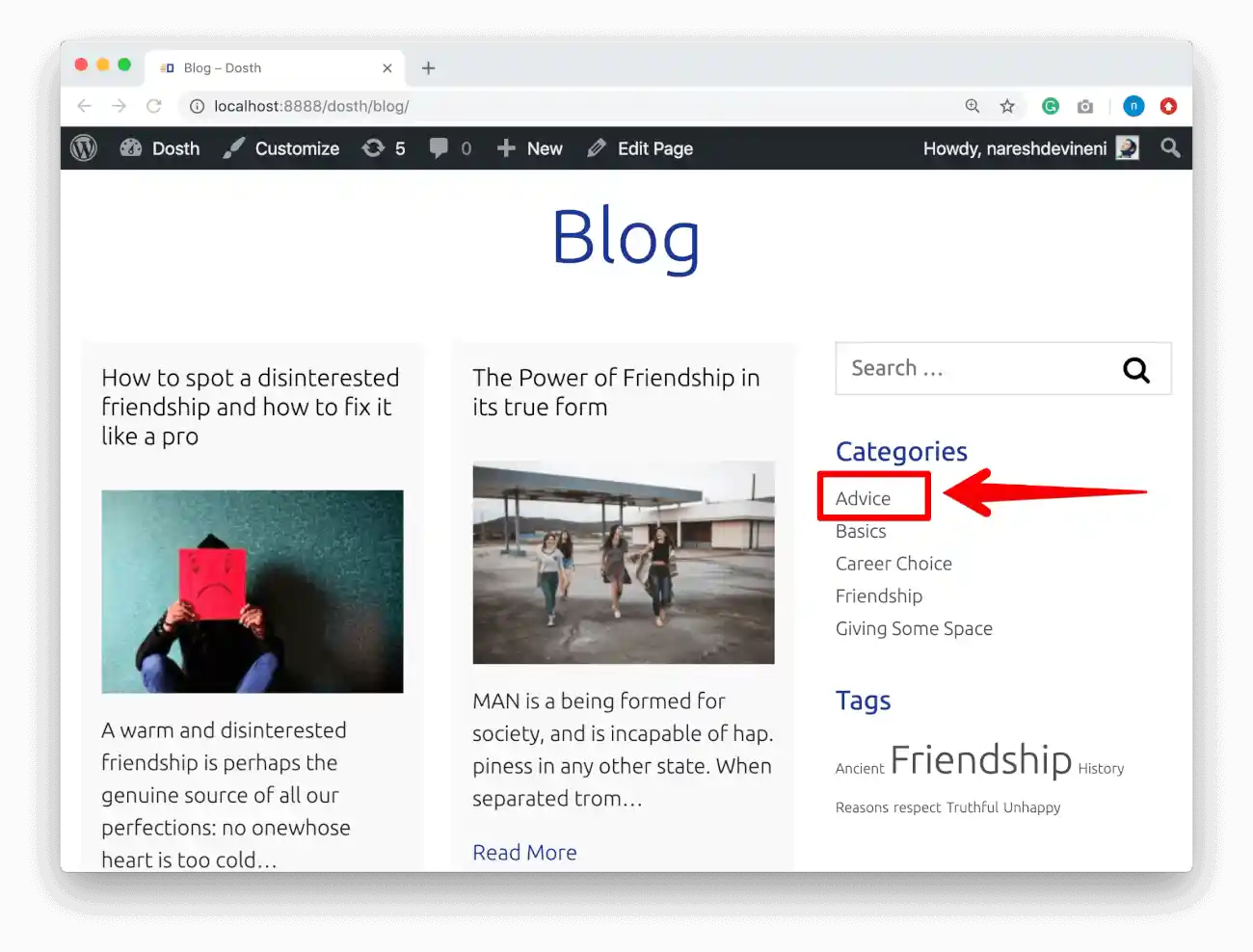
Creating a custom blogs archive page template, like archive.php in the theme folder, is crucial for controlling the design and functionality of your blog archives. Without it, WordPress defaults to a generic archive layout, potentially compromising your site’s appearance and user experience. By crafting a custom template, you gain control over layout, navigation, and SEO optimization, ensuring a cohesive design that promotes related content and enhances brand consistency. This ultimately leads to a more engaging and user-friendly browsing experience for your visitors, driving better results for your website.
In WordPress if you created index.php after you create front-page.php file and copy all content from html content to front page design, then copying the html template from blogs.html or any-name.html to index.php, you will have new design for WP blogs page. In index.php file you can replace some content of the html with WordPress functions to fetch some data including posts title, featured image, single post link and others dynamically.
Some of main WP functions that can be used to get post data
the_title(): Displays the title of the current post.the_permalink(): Displays the URL of the current post.the_excerpt(): Displays a short excerpt of the current post’s content.the_content(): Displays the full content of the current post.the_author(): Displays the author of the current post.the_author_posts_link(): Displays a link to the author’s archive page.the_time(): Displays the date and time of the current post.the_category(): Displays the categories of the current post.get_the_category_list(): Returns a formatted string of categories for the current post.has_post_thumbnail(): Checks if the current post has a featured image.the_post_thumbnail(): Displays the featured image of the current post.get_the_post_thumbnail(): Returns the featured image of the current post.the_tags(): Displays the tags of the current post.get_the_tag_list(): Returns a formatted string of tags for the current post.get_the_date(): Returns the date of the current post.get_the_time(): Returns the time of the current post.
Creating archive.php to display dynamic content depending on Author, Category or Date
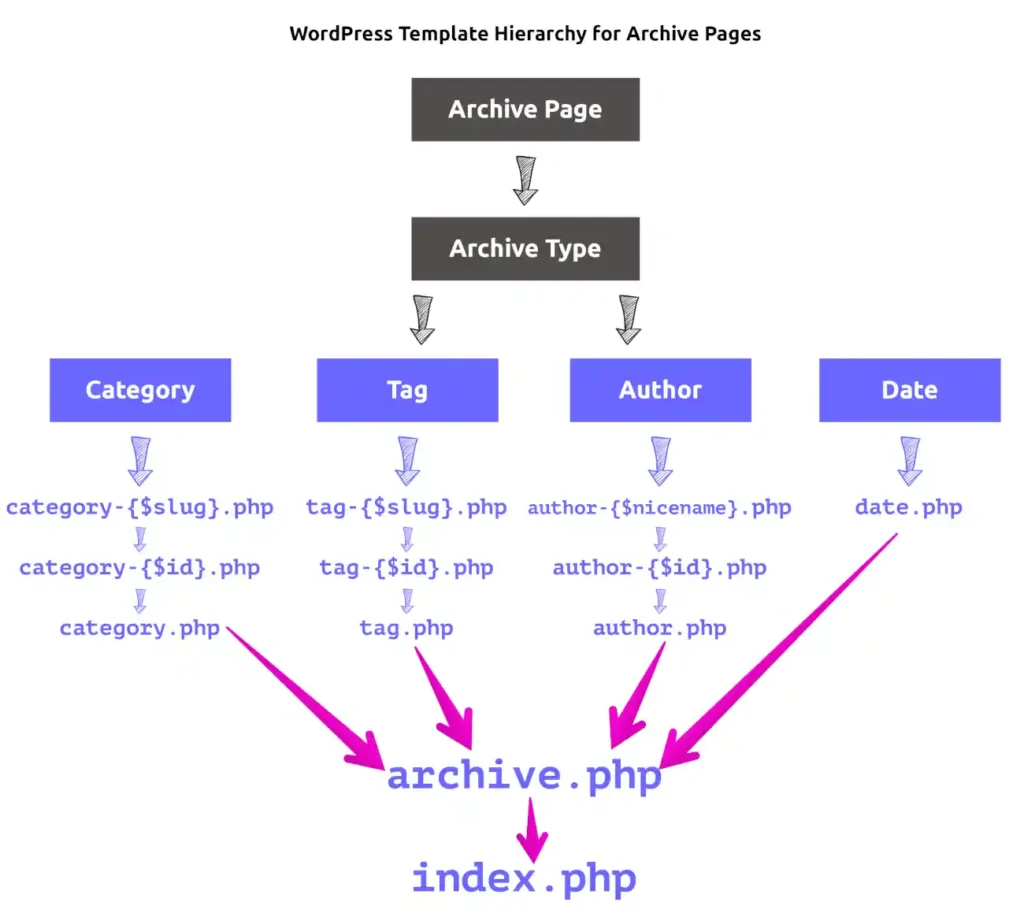
After creating the index.php file and replacing content with WP posts content, by default WP uses the index.php template for all archive pages like to display author’s posts, for category based posts … Here are steps create new template for categories or author based posts
- Create new file called archives.php with in the root folder of the theme
- Copy & paste all content from index.php file
- Change some parts of the title or content using if condition
<?php if (is_category()) {
// Category related post contents
} else if (is_author()){
//Author's related post contents here
}?>
For example to replace the title of the page that the user is visiting, you may put the page title as
<?php if (is_category()) {
single_cat_title();
} else if (is_author()){
 echo 'Posts By '; the_author();
}?>
Writing like this using if statement for each content, like for Author, for Category, For date (Day, Month, Year) based post each time is time taking. So, you may prefer using WP function <?php the_archive_title(); ?> which will take care of all the condition and display title for archives accordingly but if you want to control what text is printed for each archive types, you can use the if condition to display the content like title of the page, descriptions …
—- Thankyou for Reading —-