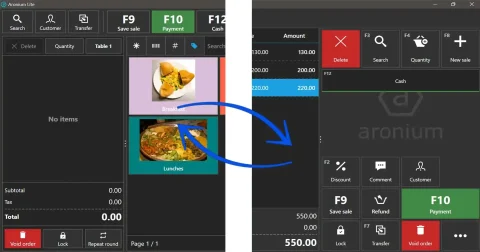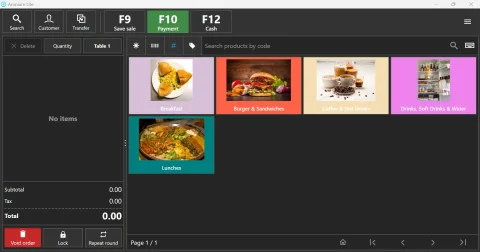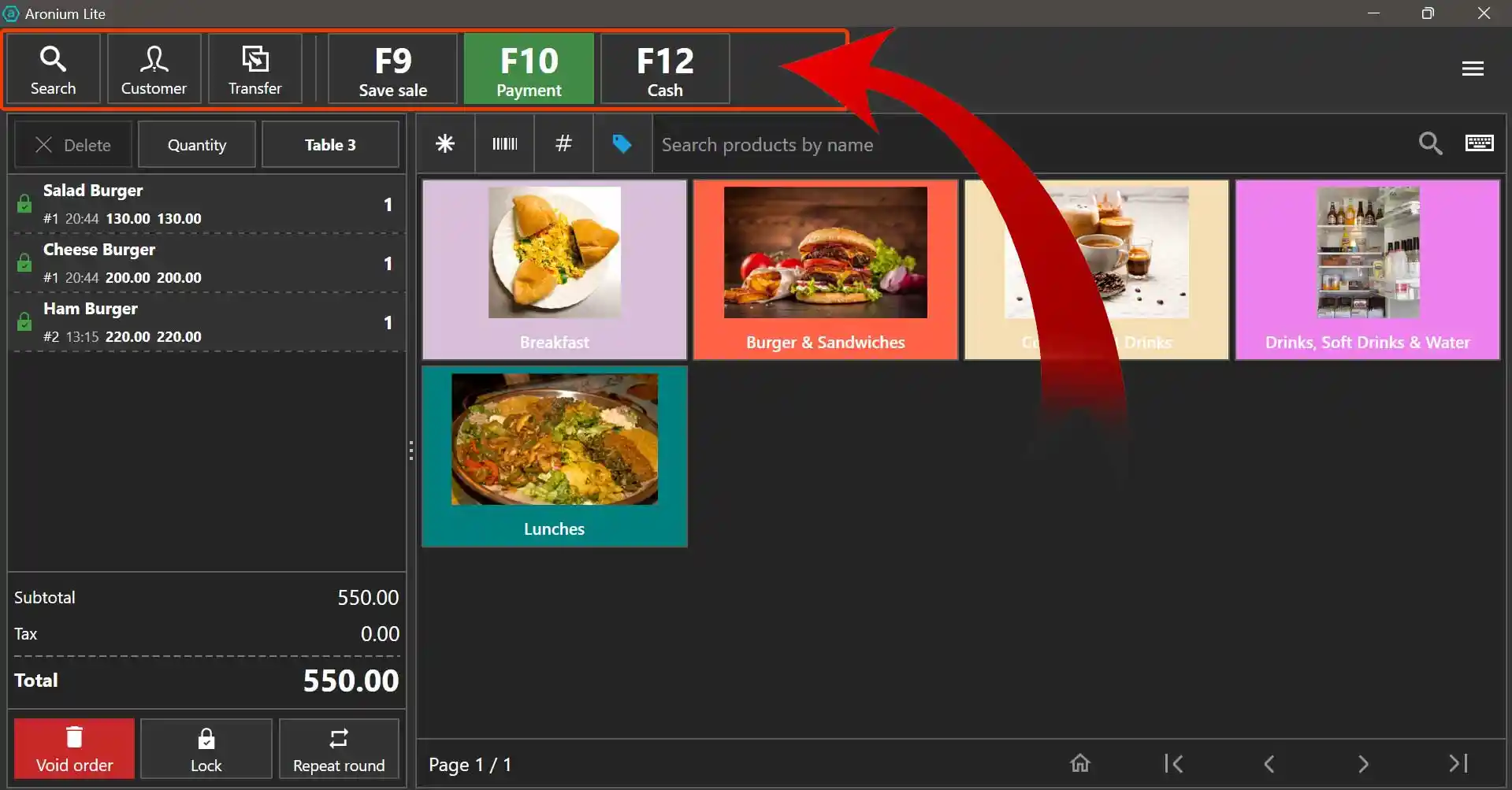
In Aronium POS & Order management system, you can edit what you see on the top button bar of the dashboard. This can be useful if you are trying to work with different users with different user access levels to display & hide some buttons from the dashboard for the frontend users.
There are two types of layouts on Aronium POS & order management system which are “Visual” & “Standard”. . Switch between “Visual” & “Standard” layouts.
—> Remember Modifying button bar icons will only be applicable on Visual Layout <— If you are in visual layout,
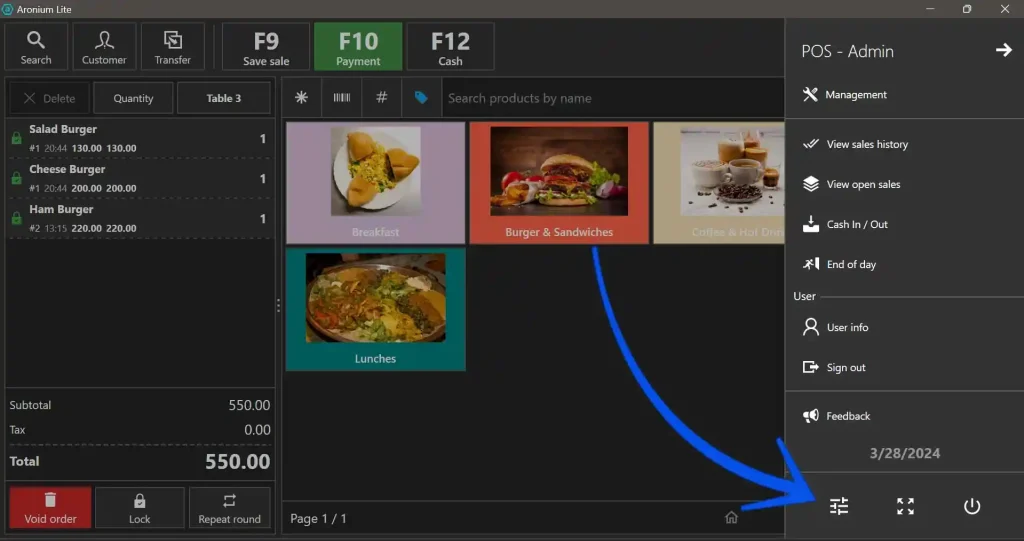
1) Go to Settings
In the Aronium Visual Layout Dashboard, click on three dashes icon on the top right cornet & click on the Settings icon at the bottom of the sidebar.
2) Untick Unimportant Buttons
Scroll down to the end of settings & you will find button bar section. Here every items that are ticked will be displayed in the dashboard button bar. But remember these selected items will only be applicable to the visual layout of Aronium. So, if you are using standard layout, you won’t see the change.
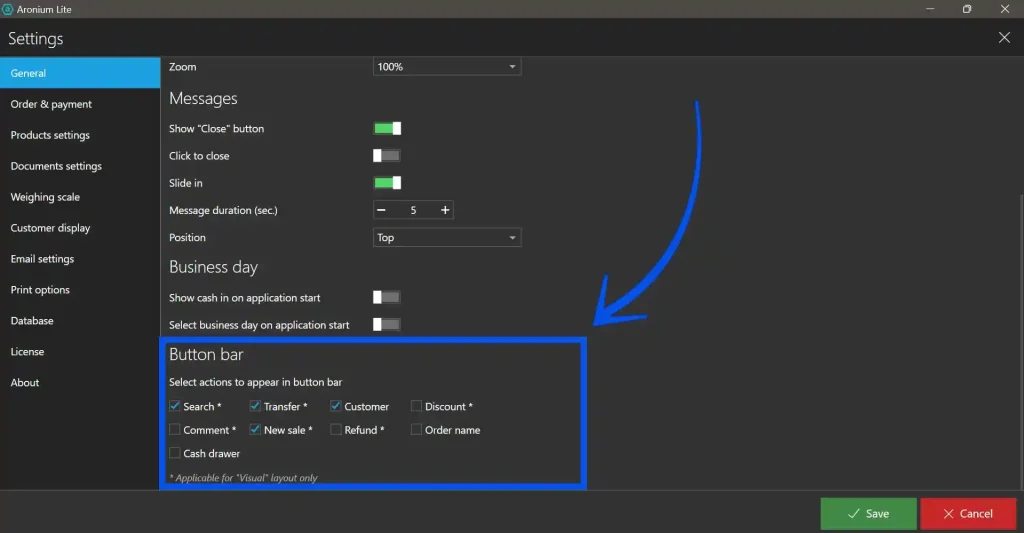
That’s it. Remember saving changes after you select your preferred buttons.
—– Thankyou for reading —–