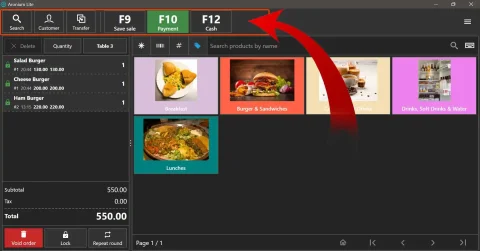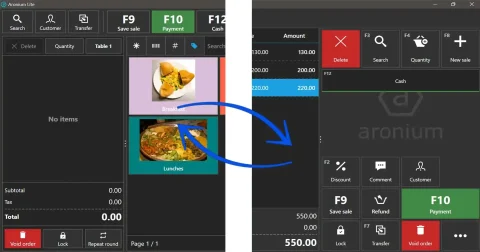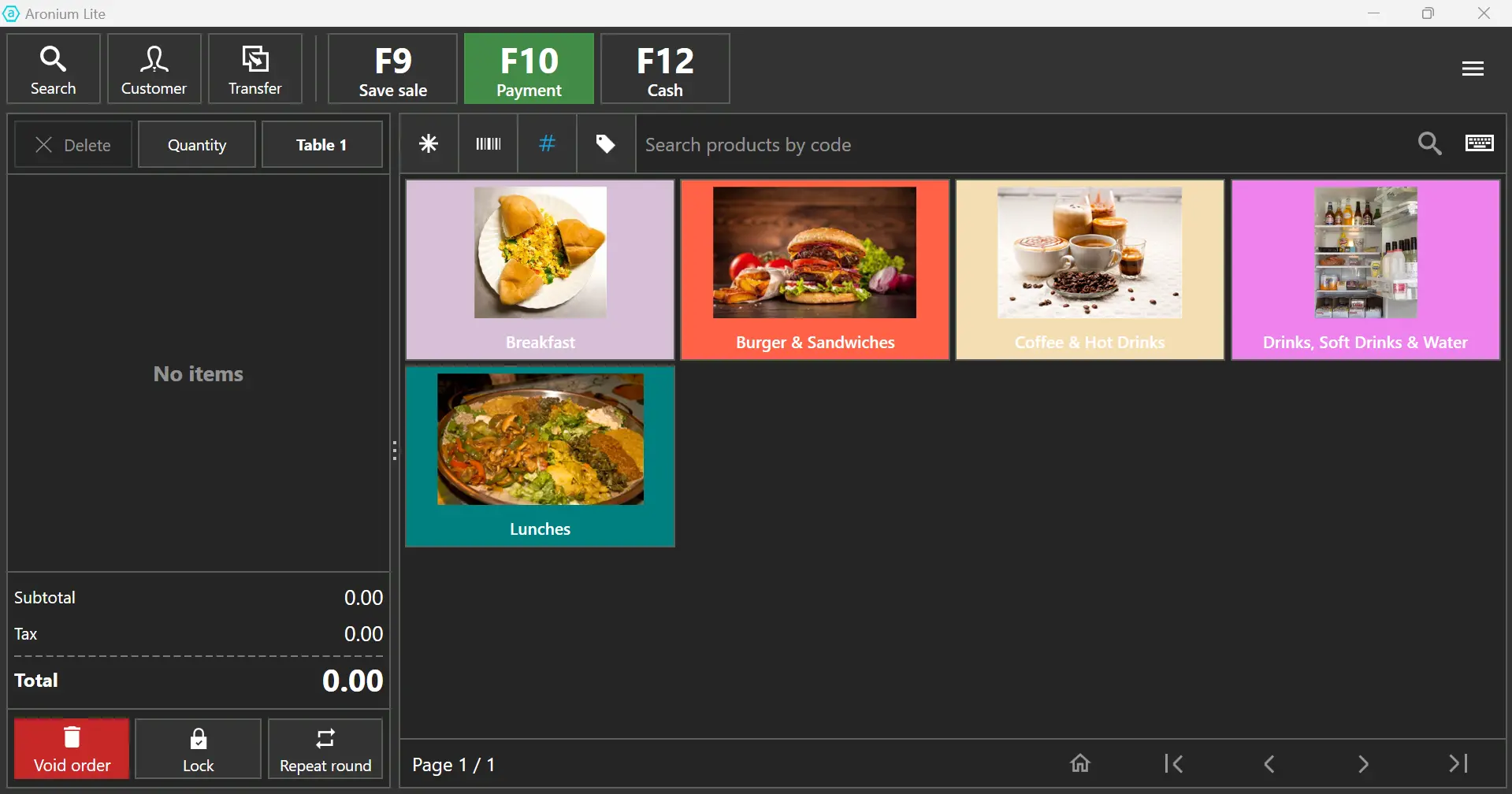
Aronium POS is a comprehensive Point of Sale (POS) system designed primarily for Windows. It caters to retailers and restaurants, offering a range of features that enhance efficiency and streamline business operations
Aronium POS is a user-friendly Point of Sale (POS) system designed for retailers and restaurants. With features like advanced inventory management, multiple cash registers, and robust security, Aronium streamlines business operations. It’s cost-effective, making it an excellent choice for startups and small businesses. Whether you run a boutique or a café, Aronium POS enhances efficiency and improves customer service.
1) Product Search
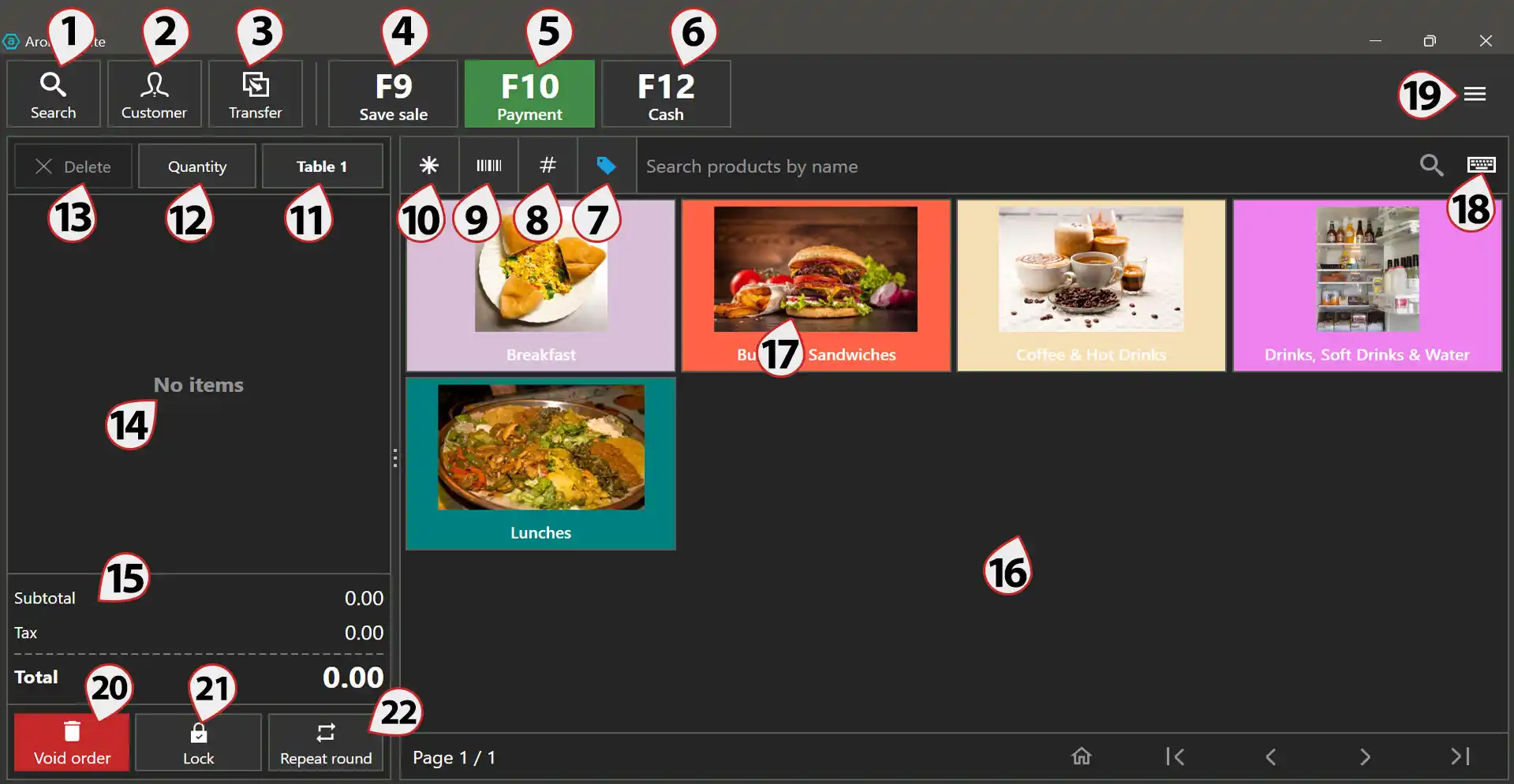
The product search button plays a crucial role in locating and managing products within your point-of-sale system. It can be searched with product name, product code or the barcode option.
2) Customer / Waiter Selection
Customer / Waiter Selection in Aronium POS system. This button serves as a pivotal tool for managing customers and/or during transactions. This option in food stores can be used to assign orders to waiter.
3) Transfer Sale
Transfer Sale Option in Aronium POS allows you to seamlessly move an ongoing sale from one user or order to another. It’s particularly useful during shift changes or when handling large transactions that require multiple staff members. By clicking this button, you can transfer the current sale to another user without losing any data or order details.
4) Save Sale
When creating orders, another order may occur while previous order is processing. Here is when the save sale option comes. With this option we can handle multiple orders at the same time.
5) Payment Options
This option comes in hand when the customer pays using one or more of your provided payment options, it is used to mark the payment as paid using preferred payment option. It is also used to split payments and mark partial amount paid with one payment method.
6) Fast Cash Payment Option
This is one of payment options that appears here depending on you mark the payment as quick payment in payment management area. It is used to mark the payment completed using that option only & completely.
7) Search products by product name
8) Search products by product code
Search for product by it’s unique identifier (number)
9) Search products by barcode
Used to search for product using barcode assigned to the product. It is very useful when used with barcode readers for speeding up the work process.
10) Search products by any value
Select this option and then, it will search for product with any value you insert. It may be Product name, Barcode or Product code
11) Table/Order Assignment & Management
Table and order assignment in Aronium POS is used to assign sales orders to different tables and save the order by designing them according to your table & seat structure.
12) Change Quantity Option
After adding products to the line items area from product display area, you can directly click on the product line & then click on “Quantity” button to change it’s quantity.
13) Delete Line Item Option
After adding products to the line items area from product display area, you can directly click on the product line & then click on “Delete” button to remove the product from line are.
14) Line Items List Area
The area where all the products selected from the product display area appear.
15) Product Price Information Area
Product subtotal, Total Tax & Total price including Tax will be displayed here.
16) Product Display Area
All the list of product existing on the software will be displayed on product display area.
17) Product/Item or category image
18) Aronium Virtual Keyboard
For touch computers & windows tablets or when keyboard is not installed in the OS, this comes handy & can be used anytime easily.
19) Sidebar toggle
To get many options as Management, Settings, Order history, Sales history Signout, Application Settings and Others from the sidebar.
20) Void Complete order
Unlike delete line item which removes single line item, “Void Order” option is used to void the complete order
21) Lock Order
Lock order option helps to lock orders after saving so that it can not be accessed by other users and/or to prevent the order from replacing by other users.
22) Repeat saved order round
When saved order is ordered again simply “Repeat Round” button will add existing order again to the order line items area.