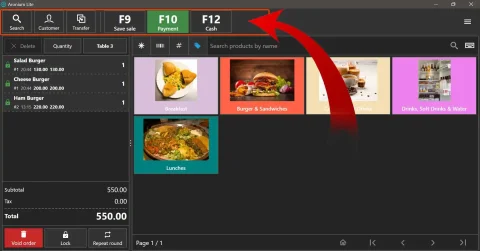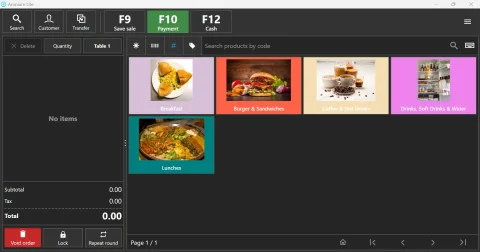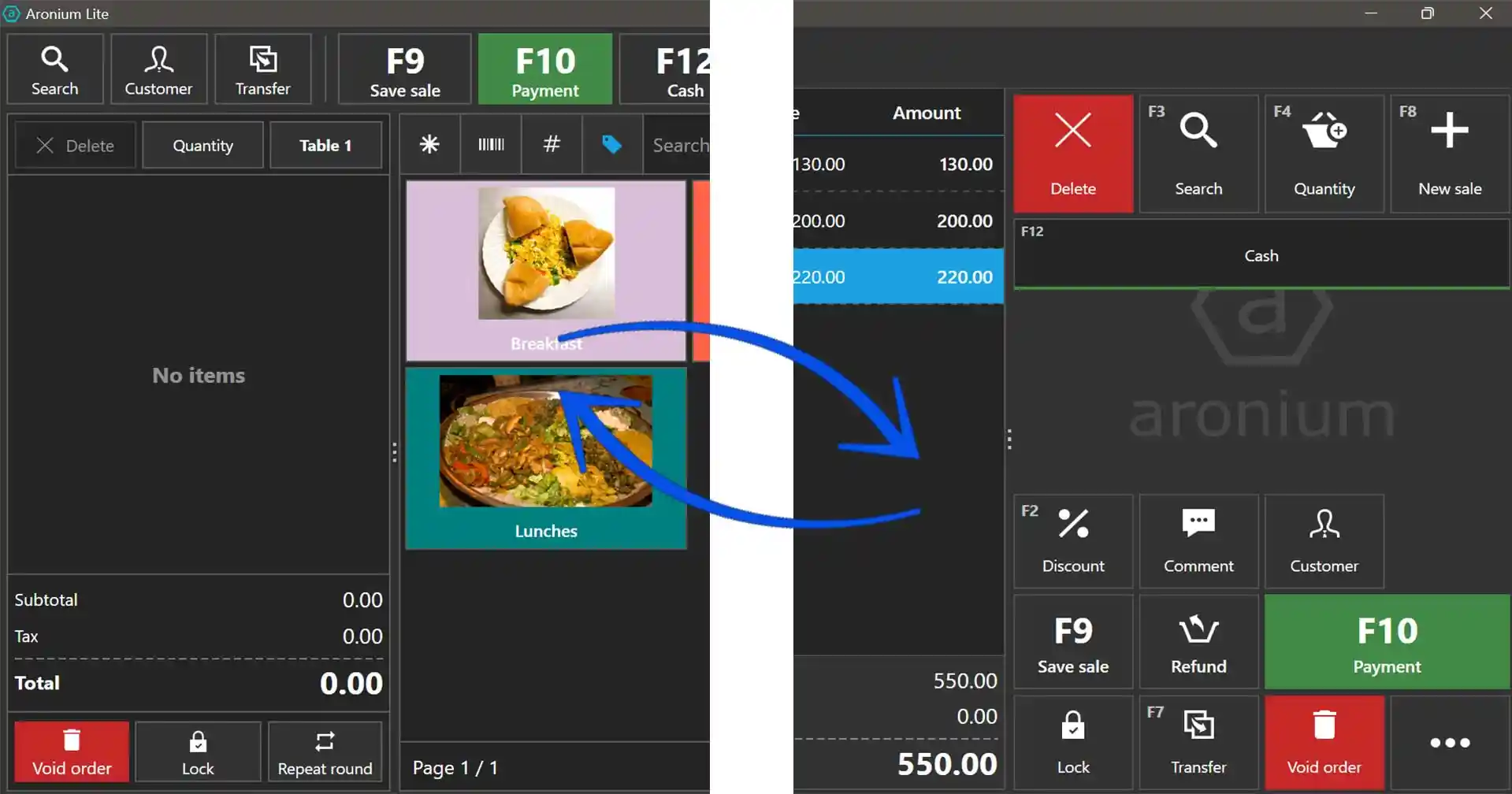
Aronium POS comes with two types of layout known as “Visual Layout” (which displays all the products on product display area) & “Standard Layout” (Hides products & optimized for QR search).
Switch from Visual Layout to Standard
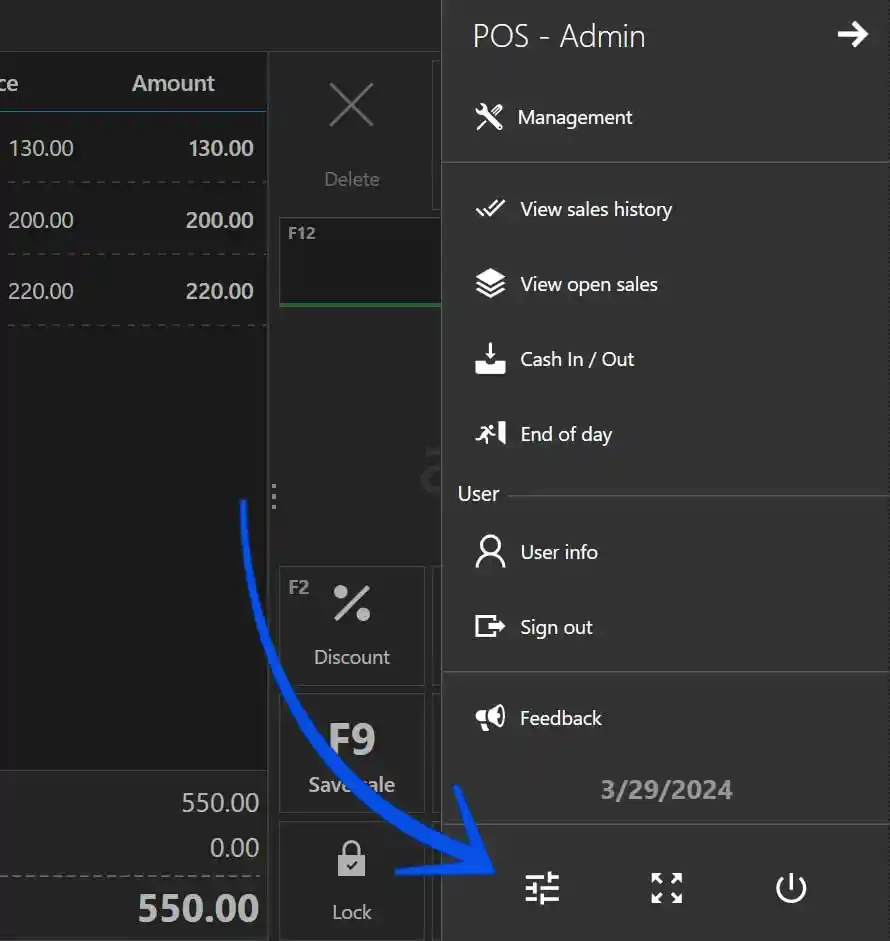
1) If you are in Visual layout, to switch to Standard layout, click on three dashes icon on the top right cornet & click on the Settings icon at the bottom of the sidebar.
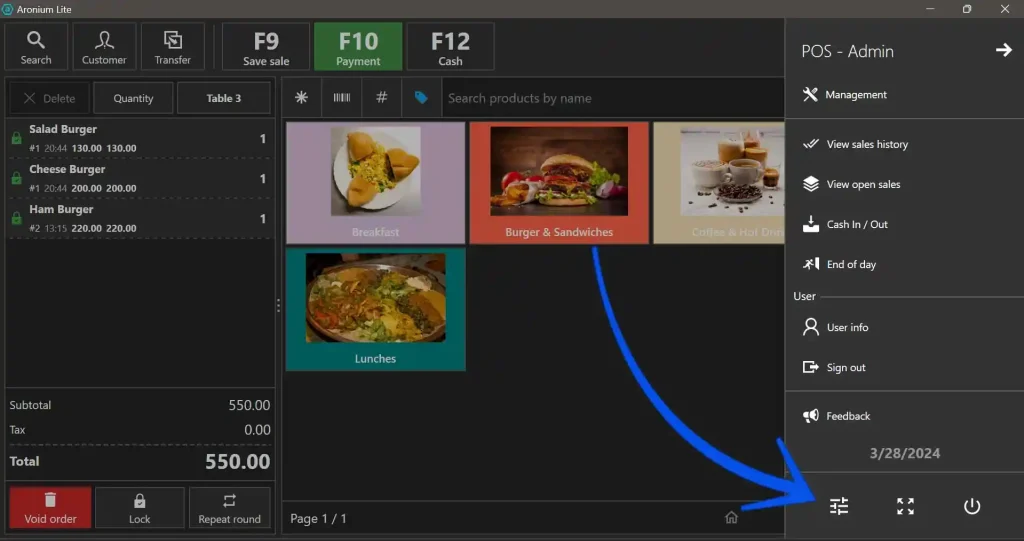
2) In General Settings tab under Application Style section you will find Layout option.
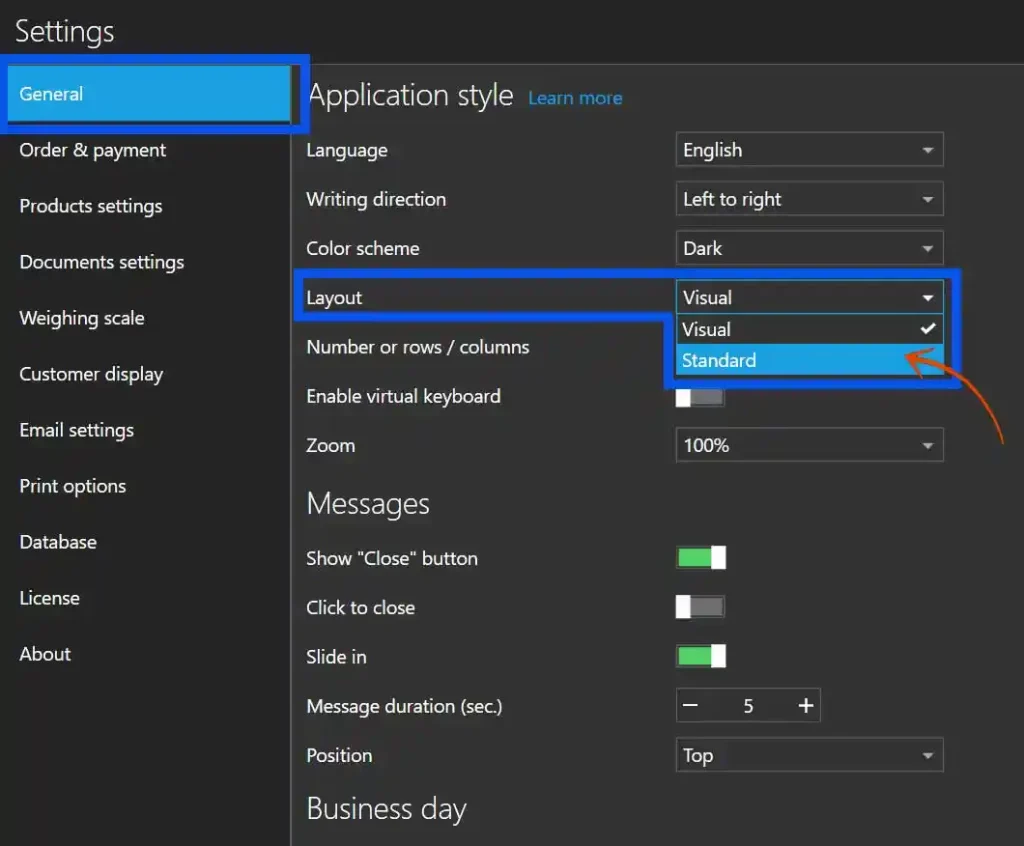
3) In Layout setting dropdown, select “Standard” and click save.
Switch from Standard Layout to Visual
1) If you are in Standard layout, to switch to Visual layout, click on three dots icon on the bottom right cornet of button bar & click on the Settings icon at the bottom of the sidebar.
2) In General Settings tab under Application Style section you will find Layout option.
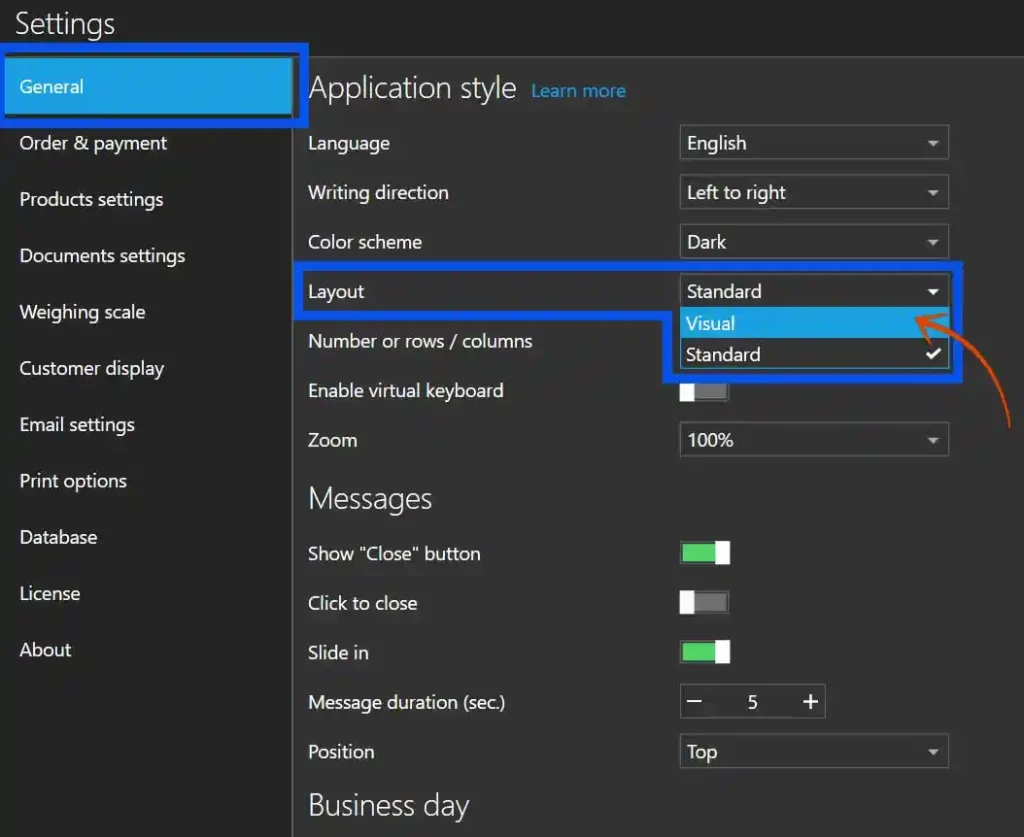
3) In Layout setting dropdown, select “Visual” and click save.
—– Thankyou for reading —–